MovieBox Smart TV: How to Get It on Samsung, LG, Hisense, Apple TV & More (2026)

Quick Compatibility Reference
MovieBox APK has no official smart TV app, not in the Samsung app store, the LG Content Store, or the Apple App Store for tvOS. It still works on every major TV brand in under five minutes, but the method depends on which TV you own.
Android TV and Google TV devices (TCL, Sony Bravia, Philips, some Hisense models) install the MovieBox APK directly. Samsung, LG, and Apple TV users get it working by casting from a phone or plugging a Firestick into HDMI; a browser method also works on Samsung and LG. This guide covers every brand separately, including Hisense Vidaa OS, which most guides get wrong with exact steps for each path.
MovieBox has no official Smart TV app — not in the Samsung app store, LG Content Store, or Apple App Store for tvOS. It works on every major TV brand once you match the method to your TV’s operating system. This guide covers every brand, every method, every common failure — from Android TV direct install to Samsung’s new Google Cast update, Hisense VIDAA, Firestick, Xiaomi Mi Box, Apple TV, and Roku. Last verified September 26, 2026.
A fast reference before you pick a method — match your TV brand to the install options that actually work for it.
| TV Brand | OS | Direct APK | Casting (Android) | AirPlay (iPhone) | Firestick / Android Box |
|---|---|---|---|---|---|
| Hisense (Android TV models) | Android TV | Yes ✓ | Yes | Yes | Yes |
| Hisense (Vidaa models) | Vidaa OS | No ✗ | Yes (2024+ only) | No | Yes |
| Hisense (2026 Google TV models) | Google TV | Yes ✓ | Yes | Yes | Yes |
| TCL | Android TV | Yes ✓ | Yes | Yes | Yes |
| Sony Bravia | Google TV | Yes ✓ | Yes | Yes | Yes |
| Xiaomi / Mi TV | Android TV / PatchWall | Yes ✓ | Yes | No | Yes |
| Samsung (2026 + select 2023–2024) | Tizen OS | No ✗ | Yes (Google Cast via update) | Limited | Yes |
| Samsung (older than 2023) | Tizen OS | No ✗ | Smart View (Galaxy phones only) | Limited | Yes |
| LG (2021+) | webOS | No ✗ | Yes (Google Cast) | Yes (AirPlay 2) | Yes |
| LG (pre-2021) | webOS | No ✗ | Miracast / Screen Share | No | Yes |
| Apple TV | tvOS | No ✗ | No | AirPlay only | Firestick only (no Apple TV box) |
| Roku | Roku OS | No ✗ | Screen Mirror (Android) | No | Yes (via HDMI) |
| Google TV Streamer | Google TV | Yes ✓ | Yes | Yes | Yes |
| Philips | Android TV | Yes ✓ | Yes | Yes | Yes |
| Nvidia Shield TV | Android TV | Yes ✓ | Yes | No | Not needed — Shield is the box |
| Vizio (2023+) | SmartCast | No ✗ | Yes (Google Cast) | Yes (AirPlay 2) | Yes |
| Vizio (pre-2023) | SmartCast | No ✗ | Yes (Chromecast) | No | Yes |
What Is MovieBox?
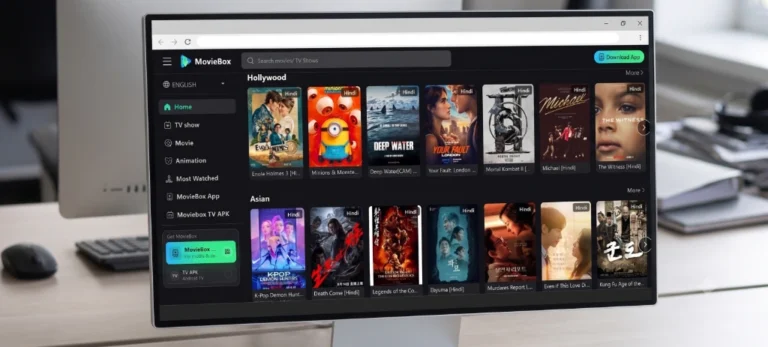
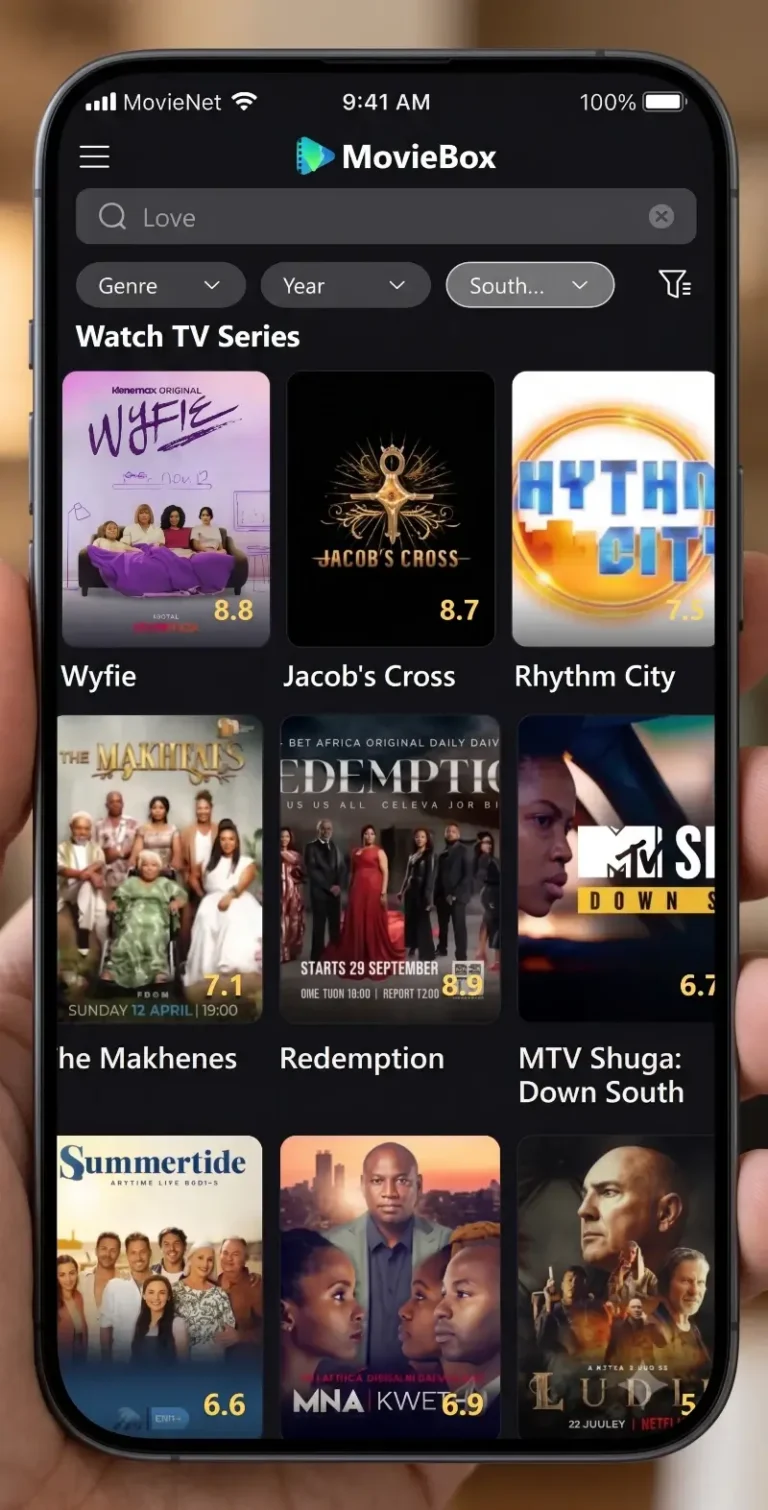
MovieBox is a free third-party streaming app for Android, Firestick, PC (MovieBox for PC), and smart TVs. It pulls links from public servers, so no subscription is needed. It’s not on the Play Store or any TV app store; installation requires sideloading the APK. As of 2026 it has passed 200 million downloads, popular in South Africa, Pakistan, and India.
🎬 Hollywood & Bollywood
Blockbusters through classics. Full Bollywood 1970–2026. South Indian cinema in Tamil, Telugu, Kannada, Malayalam.
🏏 Cricket Hub (Live)
PSL, IPL, Asia Cup, T20 World Cup, ICC tournaments, ODIs, Tests — live + replays. Key for SA, Pakistan, India.
⚽ Football (Live)
Premier League, La Liga, UEFA Champions League, Africa Cup of Nations — live + highlights.
🇵🇰 Pakistani Dramas
ARY Digital, HUM TV, Geo TV — full series. Urdu subtitles. Turkish dramas subtitled in Urdu.
🇳🇬 Nollywood
Dedicated African cinema section — regularly updated. Best Africa-relevant content available in a free app.
🇰🇷 K-Dramas & Anime
Korean dramas, anime, Turkish dramas, Filipino and Chinese series. Seasonal anime with multi-language subtitles.
What Can You Actually Watch on MovieBox on TV?
🇿🇦
South Africa
Premier League, Africa Cup of Nations, Nollywood titles, and occasional local series — won’t replace Showmax-exclusive content.
🇵🇰
Pakistan
PSL cricket, Urdu dramas, ARY and Hum TV titles, and Bollywood films.
🇮🇳
India
IPL cricket (server availability varies), Bollywood, and regional films in Tamil, Telugu, and Malayalam with Hindi subtitles.
Key Features of MovieBox
Free HD and 1080p streaming, no account needed on first launch
4K content on MovieBox Pro (VIP tier, approx. $1.49/month)
Offline downloads for watching without data
Multi-language subtitles including Zulu, Urdu, and Hindi
Live sports: Premier League, PSL cricket, IPL, Africa Cup of Nations
Works on Android, iOS (MovieBox for iOS), Windows PC, Firestick, and Android TV
Guest mode for instant watching with no sign-up
Is MovieBox Free on Smart TV — and Is Pro Worth It?
| Feature | Free Version | Pro VIP (~$3–5/mo) |
|---|---|---|
| Cost | Free | ~$3–5/month (≈R55–R90) |
| Ads | Yes — pre-roll and mid-stream | Removed entirely |
| Max streaming quality | 1080p HD | 4K (connection dependent) |
| Offline downloads | Limited (points-based after v4.0) | Unlimited |
| Server speed | Standard | Priority dedicated servers |
| Invitation code needed | No | Yes |
| Content library | Full library | Full + Private Garden exclusives |
| Account needed | No — Guest mode instant | Yes |
The free version covers most use cases. If you are watching on a 4K TV and want ad-free playback, MoiveBox Pro APK is worth the cost. If you are on a 32-inch screen with average broadband, the free version is fine. While MovieBox Mod APK gives you all the pro features completely free.
Is MovieBox Pro worth it on a Smart TV?
On a 4K TV with a fast fibre connection, Pro VIP’s priority servers and 4K access make a real visible difference vs the free tier. On a 32-inch screen with 10 Mbps broadband, free is sufficient. See the full MovieBox Pro guide for invitation code methods.
Can You Download MovieBox on a Smart TV?
Not directly through any official app store. Smart TVs run different operating systems, and most of them block third-party APK installation by default. The method you use depends on your TV’s OS.
Samsung TVs (Tizen OS)
Tizen does not support APK sideloading and MovieBox isn’t in the Samsung app store. What works: casting from Android (Smart View), screen mirroring from iPhone, a Firestick via HDMI, or the Samsung browser for the MovieBox web version. Tizen v2115 added Google Cast to 2023-2026 models, so many Samsungs can now receive casts directly from the MovieBox player.
LG TVs (webOS)
webOS blocks APK installation. Three methods work: casting from Android, AirPlay from iPhone, and Firestick via HDMI. LG TVs from 2021 onward include AirPlay 2, so iPhone users can mirror MovieBox with no extra device.
Hisense TVs
Hisense sells TVs on either Android TV or Vidaa OS; the install method differs completely between them. See Method 2 for full steps.
TCL, Sony Bravia, and Philips
All three run Android TV or Google TV, so MovieBox installs directly as an APK. The Downloader app method in Method 1 works on all of them.
Apple TV
No MovieBox app for tvOS and no APK sideloading. AirPlay from an iPhone is the only method; a Firestick via HDMI is the alternative without an iPhone. Roku cannot install APKs; the MovieBox web version through Roku’s browser is the only path.
MovieBox Pro on Android TV — Invitation Code and VIP Setup
MovieBox Pro requires an invitation code to activate VIP features. The code is separate from the download.
After installing MovieBox Pro APK:
- 1Open the app.
- 2Select Sign In (not Guest).
- 3Enter your invitation code when prompted.
- 4VIP features activate immediately after code entry.
If you tap Continue as Guest, the app works but VIP features stay locked. The invitation code does not expire on entry, but unused codes can expire if left too long. If your code shows as invalid, request a new one from the source where you got your Pro subscription.
Requirements to Download MovieBox on Smart TV
| Requirement | Detail |
|---|---|
| Android version (APK install) | Android 5.0 or above on the TV/box |
| Storage | 100–200 MB minimum on device; 2–10 GB for offline downloads |
| RAM | 2 GB minimum for smooth 1080p; 4 GB for 4K |
| Internet speed | 4 Mbps for 480p, 10 Mbps for 1080p, 25 Mbps for 4K |
| Downloader app | Required for Android TV / Google TV / Firestick APK install |
| Unknown Sources | Must be enabled before install (per-app setting on Android TV) |
| Wi-Fi band for casting | Phone and TV must be on the same Wi-Fi network — 2.4GHz or 5GHz, not split |
| Ethernet adapter | Optional but eliminates buffering — strongly recommended for Firestick and Android TV boxes |
South Africa tip: for users on MTN or Telkom home broadband, check your actual speed at fast.com before choosing a quality setting. Many ADSL connections sit at 4-6 Mbps, which means 480p or 720p will stream more reliably than 1080p.
Install MovieBox APK on Android TV / Google TV
This method works on: TCL, Philips, Nvidia Shield, Chromecast with Google TV, Sony Bravia (Google TV), and Hisense models running Android TV.
Step-by-Step: Install Using the Downloader App
- 1On your Android TV, open the Google Play Store.
- 2Search for “Downloader by AFTVnews” and install it. This is a free, trusted app used by millions for APK sideloading.
- 3Go to Settings on your TV.
- 4Select Device Preferences (on some TVs this is just “Device”).
- 5Select Security and Restrictions.
- 6Find the Downloader app in the list and toggle Unknown Sources to ON.
- 7Open the Downloader app.
- 8Select Allow when it asks for storage permission.
- 9In the URL bar, type the MovieBox download URL from a verified source.
- 10The APK file will download. Select Install when prompted.
- 11Once installed, select Open.
- 12On first launch, tap Continue as Guest to start watching immediately without an account.
Total time: about 3 minutes on a stable connection.
Common mistake: People enable Unknown Sources globally in Settings without enabling it specifically for the Downloader app. On Android TV, the permission must be granted per-app, not as a blanket setting.
Google TV Is Different — Find the Hidden Setting Here
If you have a Chromecast with Google TV, Google TV Streamer, or a Sony Bravia running Google TV, the Unknown Sources setting is not in Security and Restrictions. It is hidden here:
- 1Go to Settings.
- 2Select System.
- 3Select Developer Options. (If you do not see Developer Options, go to About, find Build Number, and press it seven times to unlock developer mode.)
- 4Inside Developer Options, find Install Unknown Apps and enable Downloader.
Skipping this step is why most people fail on Google TV. The install appears to work but the APK is silently blocked.
Install MovieBox on Hisense Smart TV
Hisense is the most widely owned affordable TV brand in South Africa. Walk into any Game or Incredible Connection store in Johannesburg, Durban, or Cape Town and you will see a Hisense prominently displayed. Many students at universities like Wits, UCT, and UJ use Hisense TVs in their res rooms. The problem is that Hisense sells two completely different TV platforms, and the installation method is opposite for each.
First: Check Which OS Your Hisense TV Has
- 1Press the Home button on your Hisense remote.
- 2Go to Settings (the gear icon).
- 3Select About or About TV.
- 4Look at the System Version or Software Version field.
If it shows Vidaa, you have Vidaa OS. APK sideloading will not work. If it shows Android TV or Google TV, you can install MovieBox directly using Method 1.
Most Hisense TVs sold in South Africa from 2020 onwards run Vidaa OS. Android TV-based Hisense models are more common in the US market. If you bought your Hisense from Makro, Game, or Hi-Fi Corporation locally, there is a good chance it runs Vidaa.
Hisense with Android TV — Install the APK Directly
If your Hisense runs Android TV, follow Method 1 exactly. The steps are identical. The Downloader app works the same way, and the Unknown Sources permission is in the same location (Settings > Device Preferences > Security).
Hisense with Vidaa OS — Use Casting or the Browser Instead
Vidaa OS does not support APK sideloading. There is no way to install the MovieBox APK directly on a Hisense Vidaa TV. Do not waste time trying.
The two working options:
Option A — Cast from your phone: Vidaa OS supports Google Cast on 2024 and newer Hisense models. If your Vidaa TV shows a cast icon when you connect to WiFi, casting from an Android phone works the same way as the Samsung method in Method 3.
For older Vidaa models without built-in Google Cast: use a Firestick plugged into the HDMI port and install MovieBox on the Firestick instead.
Option B — Hisense Vidaa browser: Vidaa has a built-in browser. Open it, go to the MovieBox web version URL, and you can stream without any download. Picture quality through the browser is lower than the app, but it works without any extra hardware.
Cast MovieBox from Phone to TV (Any Smart TV)
Casting is the fastest setup if you already have MovieBox on your phone. Both devices must be connected to the same WiFi network. This is the most common reason casting fails — one device is on 2.4 GHz and the other on 5 GHz. Make sure both are on the same band.
Cast from Android Phone to Samsung TV (Smart View Method)
- 1Install MovieBox APK on your Android phone first.
- 2Open MovieBox and select any title to play.
- 3Swipe down from the top of your screen to open Quick Settings.
- 4Tap Smart View (on Samsung phones) or Screen Cast / Cast (on other Android phones).
- 5Your Samsung TV should appear in the list. Tap it.
- 6The TV will show a connection prompt. Accept it.
- 7MovieBox now plays on your Samsung TV screen.
If Smart View does not appear in Quick Settings, go to Settings > Connected Devices > Smart View and turn it on.
For Samsung TVs with the 2026 Google Cast update (Tizen v2115): tap the cast icon directly inside the MovieBox player instead of using Smart View. This gives slightly better video quality than screen mirroring.
Cast from iPhone to Samsung or LG TV (AirPlay / Screen Mirror)
For LG TVs with AirPlay 2 (2021 models and newer):
- 1Open MovieBox on your iPhone.
- 2Open Control Center (swipe down from top-right corner).
- 3Tap Screen Mirroring.
- 4Select your LG TV from the list.
- 5MovieBox plays on the TV through AirPlay.
For Samsung TVs from iPhone: Samsung does not support AirPlay natively on most models. Use a Lightning to HDMI adapter and connect directly to the TV’s HDMI port. This gives a clean wired picture with no wireless compression.
Cast from Android to LG, Vizio and Other Smart TVs
LG webOS supports Miracast and Google Cast. The steps are the same as the Samsung casting method above, except your LG TV will appear instead of Samsung in the cast list. LG Screen Share is the equivalent of Samsung Smart View.
For Vizio TVs: Vizio uses SmartCast, which supports casting from Android. Open Quick Settings, tap Cast, and select your Vizio TV. Vizio does not support AirPlay on most models.
Why Is My TV Not Showing Up in the Cast List?
For LG TVs with AirPlay 2 (2021 models and newer):
-
1
Check Wi-Fi band mismatch
This causes the majority of “TV not showing” cases. Your phone may be on 5GHz while your TV is on 2.4GHz. Connect both to the same band. Many routers show them as separate SSIDs (“Home” and “Home_5G”). -
2
Restart both devices
Power cycle your phone and TV (full restart, not just screen off). Try casting again. -
3
Toggle casting on the TV
Go into TV settings and turn Smart View / Screen Share / Google Cast off and back on. This refreshes the discovery service. -
4
Update TV firmware
Older firmware versions sometimes lack full casting protocol support. Check for updates in TV Settings → Support → Software Update.
For Samsung TVs from iPhone: Samsung does not support AirPlay natively on most models. Use a Lightning to HDMI adapter and connect directly to the TV’s HDMI port. This gives a clean wired picture with no wireless compression.
Use a Streaming Device via HDMI (Firestick / Chromecast)
Install MovieBox on Firestick (Best Daily Experience)
A Firestick connected to your TV’s HDMI port turns any TV into an Android-based streaming device. This is the most stable long-term setup because you control MovieBox with the TV remote and your phone battery is not involved.
- 1Plug the Firestick into an HDMI port on your TV. Power it via USB.
- 2On the Firestick, go to Settings > My Fire TV > Developer Options.
- 3Enable Apps from Unknown Sources.
- 4Go back to the Firestick home screen and open the Search bar.
- 5Search for “Downloader” and install it.
- 6Open Downloader, enter the MovieBox APK URL, and download.
- 7Install the APK when the download finishes.
- 8Open MovieBox and tap Continue as Guest.
The Firestick remote controls MovieBox navigation. No phone needed after setup.
Amazon released a new Fire TV interface design in 2026 with a refreshed home screen layout. The Developer Options location remains the same in Settings > My Fire TV.
Use Chromecast to Stream MovieBox from Your Phone
If you have a Chromecast with Google TV, install MovieBox directly on it using Method 1. It runs Android TV internally.
If you have an older Chromecast (3rd gen or Chromecast Ultra without Google TV), use it as a casting target. Open MovieBox on your Android phone, tap the cast icon in the player, and select your Chromecast. The video streams from your phone to the Chromecast on the TV.
Note: Google ended the original Chromecast product line in 2024. The current device is the Google TV Streamer, which runs Google TV and supports direct APK install.
Watch MovieBox on Apple TV
Apple TV runs tvOS, which does not allow APK installation or any third-party app store access outside of Apple’s own App Store. MovieBox has no tvOS version.
The only working method is AirPlay from your iPhone:
- 1Install MovieBox on your iPhone.
- 2Open the app and start playing any title.
- 3Tap the AirPlay icon inside the MovieBox video player (it looks like a rectangle with a triangle at the bottom).
- 4Select your Apple TV from the list.
- 5The video switches to Apple TV playback.
AirPlay streams wirelessly, so both devices need to be on the same WiFi network. For a wired alternative, use a Lightning to HDMI adapter connected to the Apple TV’s HDMI port, though this is less common with Apple TV since AirPlay works reliably.
Watch Through Your TV’s Browser (No Firestick Needed)
This method works on Samsung (Tizen browser), LG (webOS browser), Hisense Vidaa (Vidaa browser), and any TV with a built-in web browser.
It solves a specific problem: you have a Samsung or LG TV, you do not want to buy a Firestick, and your phone is not always available for casting.
- 1On your TV, open the built-in browser (on Samsung it is called Samsung Internet; on LG it is the LG browser; on Hisense Vidaa, it is the built-in Vidaa browser).
- 2Navigate to the MovieBox web version URL.
- 3Sign in or continue as guest.
- 4Select a title and press play.
Limitations to know before choosing this method: Browser-based playback is less smooth than the app, maximum resolution is typically capped at 720p depending on the browser, and navigating with a TV remote is slower than with the full app interface. For occasional use or when your phone is charging in the other room, it works fine.
Install MovieBox on Samsung Smart TV
Samsung’s Tizen OS does not and never will support APK sideloading. That limitation stays. What changed in 2026 is casting: Samsung confirmed all 2026 TV models include built-in Google Cast, and a free One UI Tizen update (v2115) began rolling out to select 2023 and 2024 models in early 2026. Confirmed rolling out to Samsung S90D OLED and expanding to more 2024 models (source: SamMobile, TechRadar, Android Authority — April 2026).
Method A — Cast from Android Phone
-
1
Check your Samsung TV has the Google Cast update
Press the Home button on your Samsung remote → Settings → Support → Device Care → System Manager → check for Software Update. The update is called One UI Tizen v2115 or later. After updating, a Cast icon appears in your TV’s quick settings and in compatible apps. -
2
Install MovieBox on your Android phone
Download MovieBox APK from moviebox-apk.co.za on your phone. Make sure your phone and Samsung TV are on the same Wi-Fi network (same band — both 2.4GHz or both 5GHz). -
3
Cast from MovieBox player directly
Open MovieBox on your phone, start playing a title, and tap the Cast icon inside the MovieBox video player. Your Samsung TV appears in the list. Tap it. The video moves to the TV — your phone screen can now go off or be used for other things.
Method B — Smart View (All Samsung TVs, Galaxy Phones Only)
-
1
Open Quick Settings on your Samsung Galaxy phone
Swipe down from the top of your screen. Tap Smart View. If it is not visible, swipe right to find it in your Quick Settings tiles, or go to Settings → Connected Devices → Smart View and enable it. -
2
Connect to your Samsung TV
Your Samsung TV appears in the list. Tap it. The TV shows a connection prompt — accept it. Your entire phone screen now mirrors to the TV. -
3
Open MovieBox on your phone
Everything you see on your phone now shows on the Samsung TV. Open MovieBox and select a title to play. This uses Smart View screen mirroring — works on Samsung Galaxy phones only (unlike Google Cast, which works on any Android).
Method C — Lightning to HDMI Adapter (iPhone to Samsung TV)
If you have an iPhone: Samsung TVs do not support AirPlay natively on most models. The reliable wired method is a Lightning-to-HDMI adapter plugged into your iPhone, then an HDMI cable from the adapter to your Samsung TV’s HDMI port. Install MovieBox on your iPhone (see the iOS guide), open it, play a title, and the wired connection mirrors it to your TV with no wireless compression.
My Samsung TV doesn’t have the Google Cast update yet — how do I check?
Go to Settings → Support → Device Care → System Manager → Software Update → Update Now. If v2115 or higher installs, you get Google Cast. If your model is from 2022 or earlier, the rollout may not include it — use Smart View (Galaxy phones) or a Firestick via HDMI.
Install MovieBox on LG Smart TV
LG’s webOS blocks APK installation. Three working paths, depending on what you have:
Method A — Google Cast from Android Phone
LG TVs from 2021 onward support Google Cast natively. Open MovieBox on your Android phone, tap the Cast icon inside the video player, and your LG TV appears. Works on any Android phone — not just Samsung Galaxy devices.
Method B — AirPlay 2 from iPhone
-
1
Install MovieBox on your iPhone
See the iOS guide for AltStore, Feather, or Scarlet installation. -
2
Open Control Center and tap Screen Mirroring
Open MovieBox on your iPhone, start playing. Open Control Center (swipe down from top-right corner). Tap Screen Mirroring or tap the AirPlay icon inside the MovieBox player. -
3
Select your LG TV
Your LG TV appears in the AirPlay list. Tap it. MovieBox plays on your LG TV over AirPlay 2. Both devices must be on the same Wi-Fi network.
Method C — Miracast / LG Screen Share
On older LG TVs without Google Cast and AirPlay: open your Android phone’s Quick Settings, tap Cast or Screen Cast, and select your LG TV. LG calls its version LG Screen Share. On LG, enable this under Settings → General → LG Screen Share. The process mirrors your entire phone screen, so whatever plays in MovieBox appears on the TV.
Install MovieBox on Firestick
A Firestick plugged into any TV’s HDMI port is the most reliable long-term MovieBox setup for every TV brand. You control MovieBox with the Firestick remote — no phone needed after setup, no phone battery drain, no casting lag.
Step-by-Step: Install MovieBox on Firestick
-
1
Plug Firestick into your TV’s HDMI port
Power via USB. Change your TV input to the correct HDMI channel. Complete the Firestick initial setup (Wi-Fi, Amazon account). -
2
Enable Apps from Unknown Sources
On the Firestick home screen: Settings → My Fire TV → Developer Options → Apps from Unknown Sources → Turn ON. Amazon’s 2026 Fire TV interface redesign moved some options, but Developer Options remains in Settings → My Fire TV. -
3
Install the Downloader app
On the Firestick home screen, use the Search bar (or Alexa button) to search “Downloader”. Install the official orange-icon Downloader app by AFTVnews from the Amazon Appstore. It is free. -
4
Download MovieBox APK via Downloader
Open Downloader → grant storage permission → type the MovieBox download URL in the address bar → tap Go → navigate to the download link → download the APK (~65 MB). -
5
Install and launch
Tap Install when the download completes. Tap Open. Tap Continue as Guest to start watching immediately. The Firestick remote controls all navigation in MovieBox.
Firestick Running Slowly With MovieBox? Free the RAM
Entry-level Firesticks have 1–1.5 GB of RAM. MovieBox and background apps compete for it. Before streaming:
-
1
Close background apps
Press and hold the Home button → navigate to My Fire TV → Force-stop apps you aren’t using, or go to Settings → Applications → Manage Installed Applications and force-stop each. This can free 200–400 MB of RAM instantly. -
2
Clear the cache
Settings → Applications → Manage Installed Applications → MovieBox → Clear Cache. Does not delete your watchlist or downloads. Fixes stuttering and slow load times. -
3
Disable background app refresh
Settings → Preferences → Background Data → turn off for apps you rarely use. Reduces background RAM consumption significantly.
Install MovieBox on Firestick
A Firestick plugged into any TV’s HDMI port is the most reliable long-term MovieBox setup for every TV brand. You control MovieBox with the Firestick remote — no phone needed after setup, no phone battery drain, no casting lag.
Step-by-Step: Install MovieBox on Firestick
-
1
Plug Firestick into your TV’s HDMI port
Power via USB. Change your TV input to the correct HDMI channel. Complete the Firestick initial setup (Wi-Fi, Amazon account). -
2
Enable Apps from Unknown Sources
On the Firestick home screen: Settings → My Fire TV → Developer Options → Apps from Unknown Sources → Turn ON. Amazon’s 2026 Fire TV interface redesign moved some options, but Developer Options remains in Settings → My Fire TV. -
3
Install the Downloader app
On the Firestick home screen, use the Search bar (or Alexa button) to search “Downloader”. Install the official orange-icon Downloader app by AFTVnews from the Amazon Appstore. It is free. -
4
Download MovieBox APK via Downloader
Open Downloader → grant storage permission → type the MovieBox download URL in the address bar → tap Go → navigate to the download link → download the APK (~65 MB). -
5
Install and launch
Tap Install when the download completes. Tap Open. Tap Continue as Guest to start watching immediately. The Firestick remote controls all navigation in MovieBox.
Firestick Running Slowly With MovieBox? Free the RAM
Entry-level Firesticks have 1–1.5 GB of RAM. MovieBox and background apps compete for it. Before streaming:
-
1
Close background apps
Press and hold the Home button → navigate to My Fire TV → Force-stop apps you aren’t using, or go to Settings → Applications → Manage Installed Applications and force-stop each. This can free 200–400 MB of RAM instantly. -
2
Clear the cache
Settings → Applications → Manage Installed Applications → MovieBox → Clear Cache. Does not delete your watchlist or downloads. Fixes stuttering and slow load times. -
3
Disable background app refresh
Settings → Preferences → Background Data → turn off for apps you rarely use. Reduces background RAM consumption significantly.
Can I connect a Firestick to a DStv Explora in South Africa?
Yes. The DStv Explora has HDMI input ports. Plug your Firestick into any available HDMI input on the Explora (or the TV directly — the Explora’s HDMI output goes to the TV, so use the TV’s other HDMI port for the Firestick). Switch TV input channels to switch between DStv and MovieBox.
Watch MovieBox on Roku
Roku OS is a completely proprietary, closed system. APK sideloading is not possible. There is no MovieBox Roku channel. The two practical options:
Android Screen Mirror to Roku
-
1
Enable Screen Mirroring on your Roku
On your Roku device: Settings → System → Screen Mirroring → Screen Mirroring Mode → Always Allow (or Prompt). This enables Roku to accept Miracast connections from Android devices. -
2
Cast from your Android phone
Open Quick Settings on your Android phone. Tap Cast or Screen Cast (or Smart View on Samsung Galaxy). Your Roku appears in the list. Tap it to mirror your phone screen to the Roku TV. -
3
Open MovieBox on your phone
Whatever plays on your phone screen now shows on the Roku TV. Open MovieBox, select a title, and watch on your television.
Roku browser limitation: Roku does have a built-in browser (hidden web browser accessible via developer mode) but it is extremely limited — playback quality is poor and most MovieBox features are unavailable. Screen mirroring from Android is far superior to the browser approach. For a permanent solution, plug a Firestick into your Roku TV’s HDMI port.
MovieBox on Xiaomi Mi Box / Mi TV
The Xiaomi Mi Box S 4K and newer Mi Box 4 Pro run stock Android TV, which means MovieBox installs directly via APK — exactly like any Android TV device. The Mi Box S is particularly popular in South Africa, India, and Pakistan as a budget Android TV box that turns any HDMI TV into a smart streaming device.
Install process: identical to Method 1 (Android TV). Enable Unknown Sources for Downloader in Settings → Device Preferences → Security → Install Unknown Apps, install the Downloader app, fetch the MovieBox APK URL, download, and install.
Xiaomi TVs with PatchWall OS (common in Indian market): PatchWall is Xiaomi’s custom launcher on top of Android TV. MovieBox still installs the same way — the APK process does not depend on the launcher. If the Downloader app is unavailable, sideload MovieBox via ADB from a PC connected to the same network.
Xiaomi Mi Box S 4K is available in South Africa from Takealot and select electronics retailers. At approximately R600–R700, it gives you a fully functional Android TV box for MovieBox and every other streaming service — a step up from a Firestick at slightly higher cost with more flexibility.
Watch Through Your TV’s Built-In Browser
Works on Samsung (Samsung Internet browser), LG (LG browser), Hisense Vidaa (built-in Vidaa browser), and any TV with a web browser. Solves a specific problem: you have a Samsung or LG TV, no Firestick, your phone is unavailable for casting, and you still want to watch MovieBox.
-
1
Open your TV’s built-in browser
On Samsung: find Samsung Internet in apps. On LG: LG browser in the app tray. On Hisense Vidaa: built-in browser icon on the home screen. -
2
Navigate to the MovieBox web version
Go to the MovieBox website and find the Watch Online or Web Version link. Sign in or continue as guest. -
3
Select a title and play
Select a title and press play. Use your TV remote to navigate — most smart TV browsers support arrow-key navigation and the OK button for clicking.
Best Streaming Device for MovieBox on TV — Which One Should You Buy?
| Device | OS | 4K | Wi-Fi | Approx. SA Price | Best for |
|---|---|---|---|---|---|
| Fire TV Stick Lite | Fire OS | No | Wi-Fi 5 | ~R400–450 | Budget streaming up to 1080p |
| Fire TV Stick HD (2026) | Fire OS | No | Wi-Fi 6 | ~R450–550 | 1080p with 30% speed boost; direct TV USB power |
| Fire TV Stick 4K Max | Fire OS | Yes | Wi-Fi 6E | ~R700–900 | Best Firestick — 4K, fast, Pro VIP ready |
| Xiaomi Mi Box S 4K | Android TV | Yes | Wi-Fi 5 | ~R600–700 | Full Android TV flexibility — budget 4K |
| Google TV Streamer | Google TV | Yes | Wi-Fi 6 | ~R800–1000 | Replaces Chromecast; full Google TV APK support |
| Nvidia Shield TV | Android TV | Yes | Wi-Fi 6 | ~R2000+ | Power users — 4K AI upscaling, most powerful |
| Chromecast (original) | — | — | — | Discontinued 2024 | No longer available new |
MovieBox APK for Smart TV: What You Need to Know
Before downloading, know these three things about the APK itself:
File size is typically 61 MB. If a download shows drastically different, such as under 20 MB or over 200 MB, do not install it.
Permissions requested include storage access (for downloads) and network access (for streaming). It does not need camera, microphone, or contacts access. If a version asks for these, decline.
Scan any APK with VirusTotal before installing, especially on a shared or family TV.
There is no official MovieBox website, so verify the source every time, even if you have downloaded it before.
After Installing: How to Use MovieBox with Just Your TV Remote
Log In Without Typing — Use the QR Code Method
Typing a password with a TV remote is painful. MovieBox on Android TV and Firestick shows a QR code on the login screen. Open the MovieBox app on your phone, scan the code, and your TV logs in automatically without typing anything.
Search, Subtitles, and Quality Settings on a Big Screen
Voice search works if your remote has a microphone button — press it and speak the movie title instead of typing letter by letter.
Subtitles: open the settings icon during playback and select your language, including Zulu, Urdu, and Hindi where available.
Quality settings should match your actual connection speed, not your TV’s maximum resolution.
| Connection Type | Recommended Quality |
|---|---|
| Mobile hotspot | 480p |
| Home WiFi under 10 Mbps | 720p |
| Home WiFi 10-25 Mbps | 1080p |
| Fibre 25 Mbps+ | 4K (Pro only) |
MovieBox Pro VIP on Android TV — Invitation Code Setup
After installing MovieBox, if you want to activate Pro VIP features:
-
1
Open MovieBox and tap Sign In (not Guest)
From the home screen, go to Profile → Sign In. You need a valid MovieBox account and an invitation code. See the full MovieBox Pro guide for how to get an invitation code free. -
2
Enter your invitation code when prompted
Use the QR code method to avoid typing. The QR code login also handles invitation code entry on some versions. -
3
VIP features activate immediately
Ads disappear. 4K quality becomes available on supported content. Download limits lift. Invitation codes do not expire on entry, but unused codes sitting idle can expire at source.
Tips to Improve Your Streaming Experience on Smart TV
Use 5GHz WiFi instead of 2.4GHz where your router supports it — noticeably less buffering.
Close background apps on your Android TV or Firestick before streaming; low RAM devices slow down with multiple apps open.
Keep MovieBox updated manually since it is not on the Play Store and won’t auto-update.
Use an Ethernet adapter for Android TV or Firestick if your WiFi is unreliable — a wired connection nearly eliminates buffering.
Clear the app cache every few weeks: Settings > Apps > MovieBox > Clear Cache.
Buffering on TV — Match Your Quality to Your Connection
If a title keeps buffering, drop the quality setting one level. A stable 720p stream beats a stuttering 1080p stream every time.
Is MovieBox Safe to Use on Smart TV?
The MovieBox APK itself is generally safe when downloaded from a verified source; it doesn’t request excessive permissions and has been used by millions without major incident reports. As with any third-party APK, verify your download rather than trusting a random link, especially with fake APK impersonators reported to be increasing in 2026.
Before installing on a shared or family TV: check the permissions requested (should only be storage and network), compare file size to the 61 MB range, run it through VirusTotal, and consider using a VPN while streaming to add a layer of privacy.
Is MovieBox Legal in South Africa, Pakistan, and India?
MovieBox operates in a legal grey area in all three markets. It is not officially licensed to distribute most of its content. Enforcement against individual home viewers is rare but not zero — a South African ISP legal notice for streaming pirated content exists in documented cases.
| Country | Legal framework | ISP situation | Practical individual risk |
|---|---|---|---|
| 🇿🇦 South Africa | Copyright Act 98 of 1978; Amendment Bill under Constitutional Court review | MTN and Telkom throttle but do not block; ISP legal notices documented | Low — rare prosecution; VPN adds privacy |
| 🇵🇰 Pakistan | Copyright Ordinance 1962; PECA 2016; PTA network restrictions | PTA restricts some streaming services; VPN legal since Dec 2024 | Low for individuals; PTA more practical concern |
| 🇮🇳 India | Copyright Act 1957, Cinematograph Amendment Act 2023 | Jio and Airtel throttle high-bandwidth streaming | Low for individuals — enforcement targets platforms |
MovieBox on Smart TV — South Africa, Pakistan & India
🇿🇦
South Africa
🇵🇰
Pakistan
🇮🇳
India
MovieBox Not Working on Your TV? Fix Common Issues
TV Not Showing Up When You Try to Cast
If your TV isn’t appearing in the cast list, work through these in order:
- 1Check WiFi band. Phone and TV must be on the same 2.4GHz or 5GHz network, not split across both.
- 2Restart both devices. Power cycle your phone and TV, then try casting again.
- 3Toggle cast on the TV. Turn Smart View, Screen Share, or Google Cast off and back on in TV settings.
- 4Update the TV’s firmware. Older firmware versions sometimes lack full casting support; check for updates in TV settings.
App Installed But Won’t Open on Android TV
This usually means the APK download was incomplete or corrupted. Delete the app, clear the Downloader app cache, and reinstall using a fresh download link.
If you see a black screen immediately after opening the app, wait 15-20 seconds — MovieBox can take longer to load on lower-powered Android TV boxes.
Black Screen or No Sound When Casting
Black screen when casting from phone to TV: This usually means an HDCP (copy protection) conflict. Restart the cast session; if it persists, try a different HDMI port on the TV.
No sound when casting: Check that your TV’s audio output isn’t set to a disconnected Bluetooth speaker or soundbar. Switch back to TV speakers and try again.
Buffering or Poor Quality on TV
- 1Lower the quality setting manually rather than relying on auto-quality.
- 2Move your router closer to the TV, or use a WiFi extender.
- 3Close other devices streaming on the same network simultaneously.
If you’re on mobile hotspot data, buffering is often the hotspot’s connection, not MovieBox itself.
MovieBox on Smart TV — Pros and Cons
- Free — no subscription, no account needed to start
- Works on every TV brand once you match method to OS
- Big-screen live PSL, IPL, AFCON, and Premier League cricket and football
- Full Bollywood, Nollywood, Pakistani dramas, K-dramas on your main TV
- Multi-language subtitles including Zulu, Urdu, Hindi
- Samsung TVs (2026 and selected 2023–2024) now support Google Cast from any Android phone — major usability improvement
- Firestick turns any TV (including old Hisense Vidaa and Samsung) into a MovieBox-capable device for ~R400
- Works on 4K TVs with Pro VIP
- Guest mode — instant streaming on first launch
- No official Smart TV app — not in Samsung, LG, or Apple app stores
- Legal grey area in SA, Pakistan, and India
- Source link quality varies — no guaranteed bitrates
- Samsung and LG cannot sideload APK directly — casting or Firestick required
- Casting uses your phone battery and phone must stay nearby (Smart View) or on Wi-Fi (Google Cast)
- Hisense Vidaa (most common SA budget TV) cannot install APK — Firestick is mandatory
- Apple TV requires iPhone for AirPlay — no Android phone path
- Manual updates only — no auto-update
- South African local content (Redemption, Unseen) very limited
- Entry-level Firesticks run short on RAM with heavy movie downloads
Frequently Asked Questions about MovieBox Smart TV
Conclusion
MovieBox works on every major smart TV brand once you match the method to your specific TV. Android TV and Google TV devices get the simplest path with direct APK installation. Samsung, LG, and Apple TV users get there through casting, screen mirroring, or a Firestick — all of which take under five minutes to set up.
Start with the Quick Compatibility Reference table at the top of this guide to confirm which method applies to your TV, then follow that method’s exact steps. If casting doesn’t work on the first try, the WiFi band mismatch covered in the troubleshooting section is the most common fix.